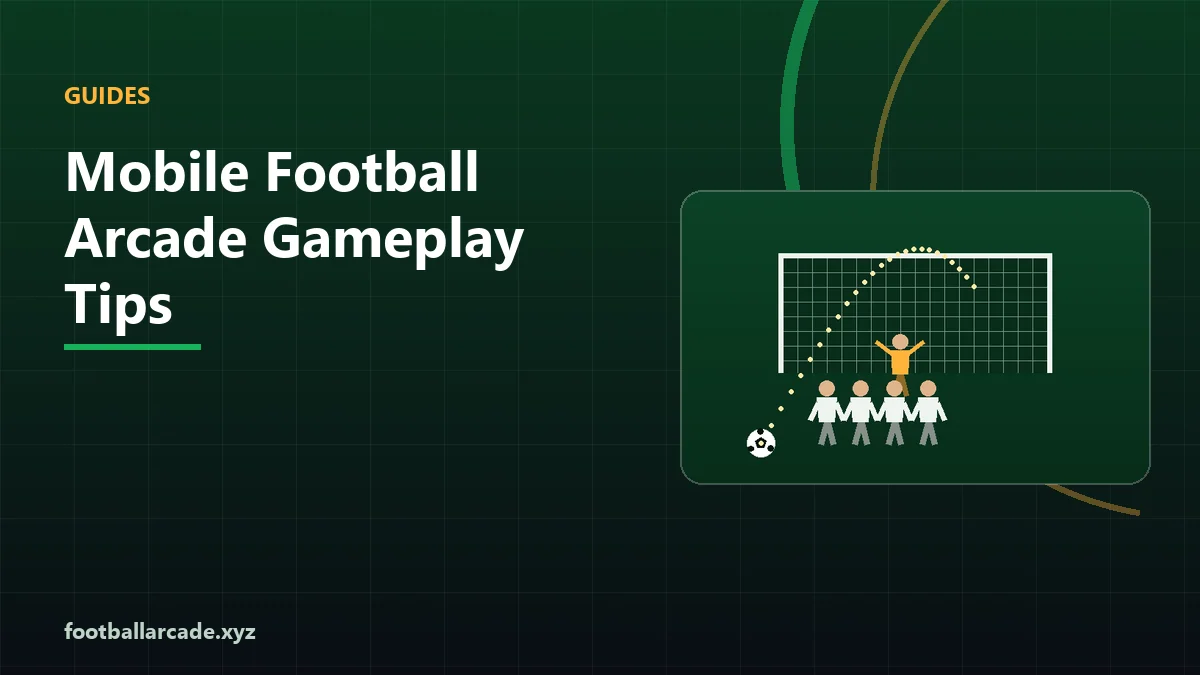
Mobile play is not a compromised version of desktop play. For some games it is better, because a tap is an absolute position and nothing on a desktop beats that for aiming. For others it is genuinely harder, and knowing which is which saves a lot of frustration.
Where a phone wins
- Goal Target Challenge — tapping aims and shoots in one action, with zero travel time. This is the fastest way to play the game on any device.
- Formation & Tactics Challenge — large buttons, no clock, one-handed, and it survives interruption because nothing is happening while you look away.
- Every timing game — a tap and a spacebar press are the same discrete event, so penalties, free kicks, the crossbar and score attack all play identically.
Where a phone is harder
- Soccer Juggle — you need position and timing simultaneously, and your thumb tends to be over the area you are watching.
- Goalkeeper Reflex — moving and diving are two inputs; on touch you drag for one and tap for the other, which conflict.
- Football Reaction Test — playable, but touch sampling adds latency, so the number is not comparable with a desktop run.
Grip and thumb position
The single biggest improvement available, and it costs nothing:
- Timing games: hold the phone in both hands and tap with either thumb. A tap anywhere on the play area works, so use whichever thumb is not supporting the weight.
- Directional games: rest both thumbs near the centre line so each side is an equal, short distance away. Reaching across costs real milliseconds.
- Aiming games: hold the phone further from your face than feels natural. You want to see the whole goal without moving your eyes, and a closer screen means more eye travel.
Screen orientation
Landscape, for every game. The games draw into a 960 by 600 logical space, so a landscape screen gives the play area more room and puts your thumbs at the edges rather than over the middle.
Portrait works — nothing distorts, because the games scale uniformly — but the play area ends up smaller and your thumb covers more of it.
Settings that matter
| Setting | Effect | Do this |
|---|---|---|
| Battery saver / low power mode | Lower frame rate, higher input latency | Turn it off before playing |
| Browser zoom | Changes the area the game gets; can push controls off screen | Keep at 100% |
| Reduce motion | Our site honours it and disables transitions | Leave as you prefer — gameplay is unaffected |
| Background apps | Compete for memory and CPU | Close what you are not using |
| Auto-brightness | Can dim mid-run, making cues harder to see | Set brightness manually |
Things that go wrong, and why
- Accidental zoom. Rapid double-taps can trigger a browser zoom gesture. Use the on-screen control buttons rather than machine-gun tapping.
- A long-press menu appearing. Our canvas suppresses the context menu, so if you see one your finger has drifted outside the play area.
- The page scrolling mid-run. Keep your finger inside the game area; the surrounding page is a normal scrolling document.
- Notifications pausing the game. Our games pause when the tab loses focus, which is deliberate — a timed game that kept running in the background would give you a broken score.
What good mobile support looks like
If you are judging another site's games on a phone, four signals:
- No horizontal scrolling anywhere on the page while playing.
- Touch controls at least around 56 pixels tall — thumb sized, not cursor sized.
- No advertising immediately beside or over the play area, where it gets tapped by accident.
- A designed tap alternative for every keyboard action, not a virtual keyboard.
Football Arcade Games for Desktop and Mobile Browsers has a game-by-game verdict.
Where to put your thumbs, by game
Specific enough to be worth a table, because thumb position is the single biggest controllable factor on a phone.
| Game | Placement |
|---|---|
| Goal Target Challenge | One thumb free and hovering; tap directly on targets. Hold the phone with the other hand only. |
| Penalty Kick Challenge | Either thumb, anywhere on the pitch. Rest it on the screen edge between kicks. |
| Football Dribble Run | Both thumbs on the on-screen buttons rather than tapping the pitch halves. |
| Goalkeeper Reflex | Left thumb dragging the keeper, right thumb on the dive button. |
| Soccer Juggle | Use the on-screen move and strike buttons; tapping the pitch puts your hand over the ball. |
The last two rows are why the on-screen control pad exists on touch devices. Tapping the play area is more direct and it also means your hand is covering the thing you need to watch — for games that need continuous movement, the buttons are genuinely better.
Two phone-specific failure modes
The notification pause. A banner appearing does not pause the game, but tapping it does — the tab loses focus and our games pause deliberately. That is the right behaviour for a timed run, and it does mean a notification mid-attempt can end a good run in a survival game. Turn on a focus mode before a serious attempt.
Thermal throttling. A phone that has been charging, or that has been running something heavy, will reduce its frame rate under load. If a game feels sluggish on a device where it was previously smooth, let the phone cool rather than assuming the game changed.